

Acknowledgement
A short acknowledgement thanking the client and site personnel for their time during the survey. This section is pre-filled with standard boilerplate text. To change it, click Edit Acknowledgement, update the text in the editor, and save.Executive Summary
A summary of the survey — when and why the visit took place, the purpose of the survey, and the key outcomes. Like the Acknowledgement, the Executive Summary starts with boilerplate text that you can tailor. Click Edit Executive Summary to update it.Positives
Positives record good practices and strengths observed at the site — for example, Good layout for emergency response. To add a positive:- Click New Positive. A new row appears at the top of the table.
- Describe the positive in the text editor.
- Select a Risk Category to link the positive to the relevant risk classification element.
- Click the tick to save, or the cross to cancel.
Observations
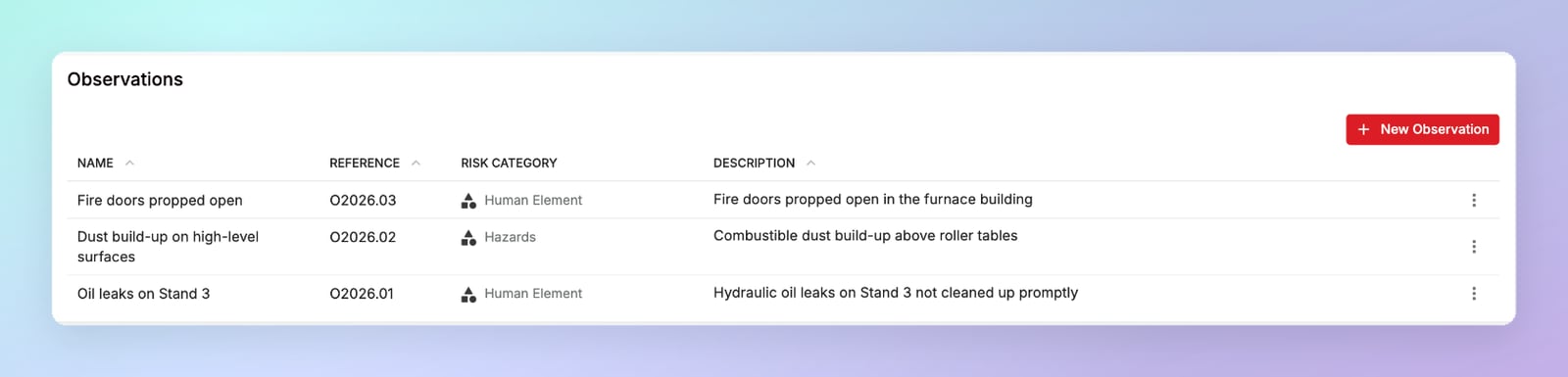
Observations are areas of concern identified during the site inspection that haven’t been raised as formal recommendations. They’re short, simple notes on things the site should keep an eye on and is encouraged to consider for further action.
To add an observation, click New Observation, fill in the row, and click the tick to save.
Observation references
Each observation is given a reference made up of O, the survey year, and a sequence number — for example, O2026.04 is the fourth observation in a 2026 survey. The reference is filled in automatically, but you can edit it if needed.Commenting on observations
To comment on an observation, click the ··· menu on the observation and select Comments, or click the comment count in the Comments column. Click Write a comment, then enter your text in the Engineer box, the Client box, or both, and click Add Comment. Each comment in the thread is labelled Engineer or Client, so it’s clear whose view it records.Observations vs recommendations
If an issue needs formal action and follow-up, raise it as a recommendation instead.
Linking positives and observations to risk categories
Linking each positive and observation to a Risk Category — in the same way as recommendations — connects your findings to the survey’s risk classification. This allows findings to be analysed by risk element across surveys and sites.Loss History
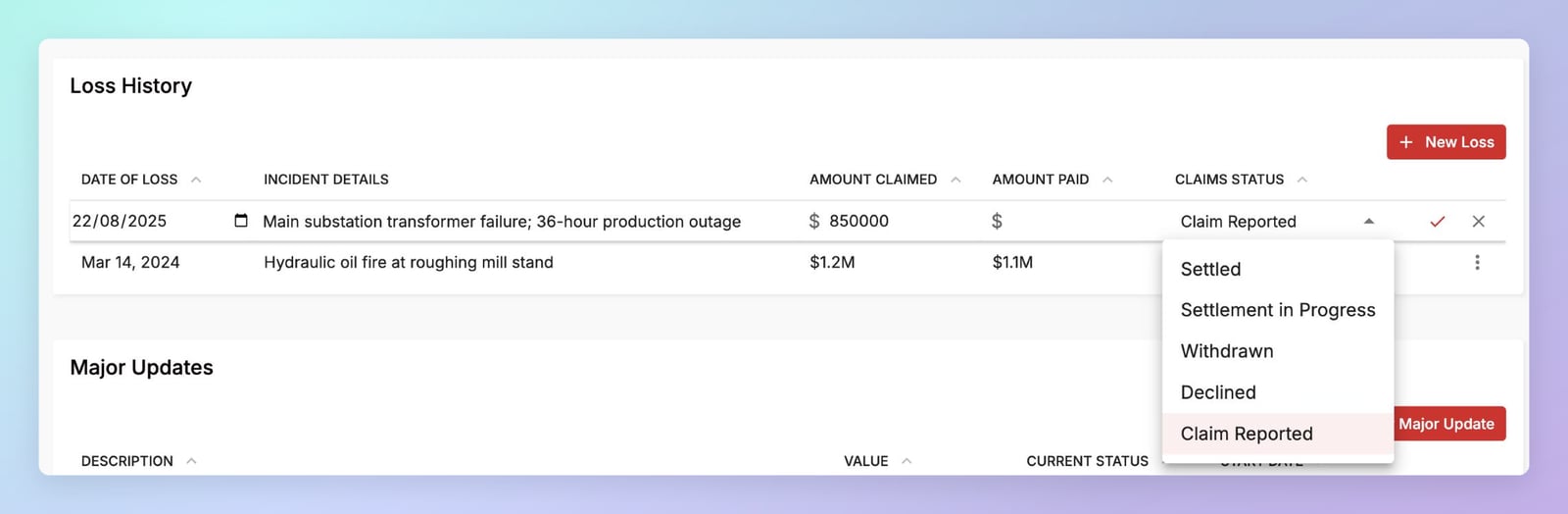
A record of past losses and insurance claims at the site.
To add a loss, click New Loss, fill in the row, and click the tick to save.
Amounts are always shown and entered in the survey’s currency, even if you’ve switched to your preferred currency with the currency button.
Major Updates
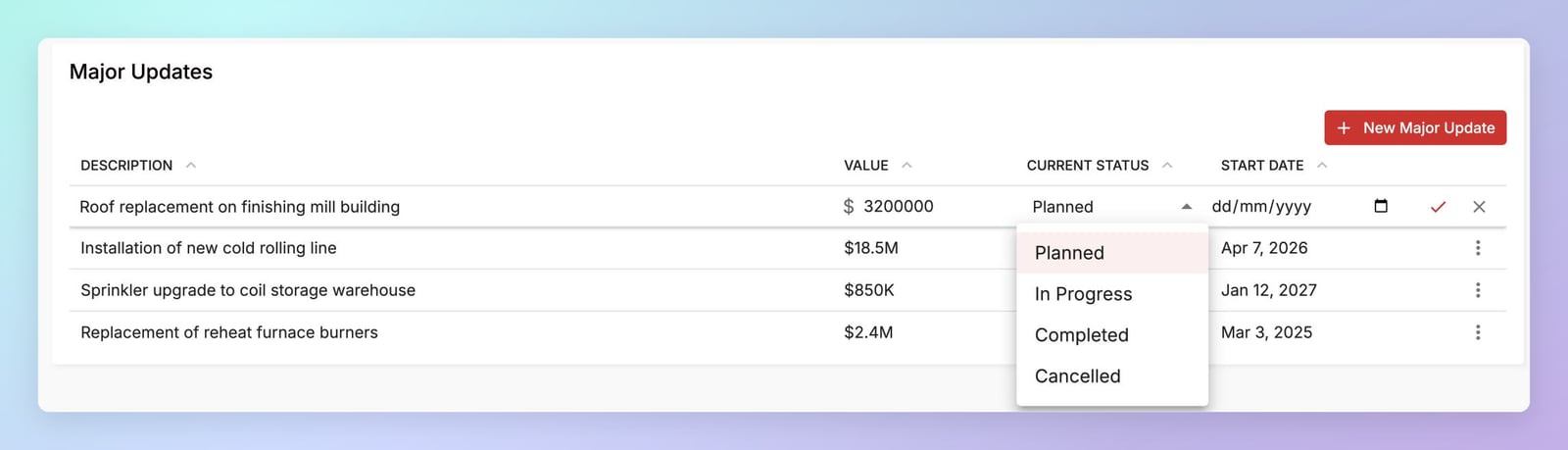
Significant changes or projects at the site — planned, in progress, or completed — such as new buildings, equipment upgrades, or process changes.
To add an update, click New Major Update, fill in the row, and click the tick to save.
The Value is always shown and entered in the survey’s currency, even if you’ve switched to your preferred currency with the currency button.
Utilities
A description of the site’s utility supplies. The section starts with a standard list of utilities:- Electricity
- Air
- Fuel
- Water
- Chiller
- Cooling Towers
⋮ menu on a row to edit the utility’s name and description. You can also add new utilities or delete ones that don’t apply to the site.
Business Interruption
Information that helps assess how a loss would affect the site’s operations and recovery. The section starts with a standard list of topics, including:- Business Interruption
- Revenue / Profit Generation
- Production Lines, Key Plant Equipment
- Authorities, Licenses and Certifications
- Building Reconstruction Time
- Machinery Replacement Time
- Interdependencies within Organization
- Bottlenecks
- Suppliers
- Customers
- Warehousing
- Make-Up Capabilities
- Adequacy of Business Continuity Plan
Editing and deleting entries
Use the⋮ menu at the end of any row to edit or delete it.
The Executive Summary, Positives, Observations, and Recommendations make up the Closeout Report.