

You can only work on surveys that you made available offline before you lost your connection. Make sure every survey you need for a site visit is downloaded in advance.
Making a survey available offline
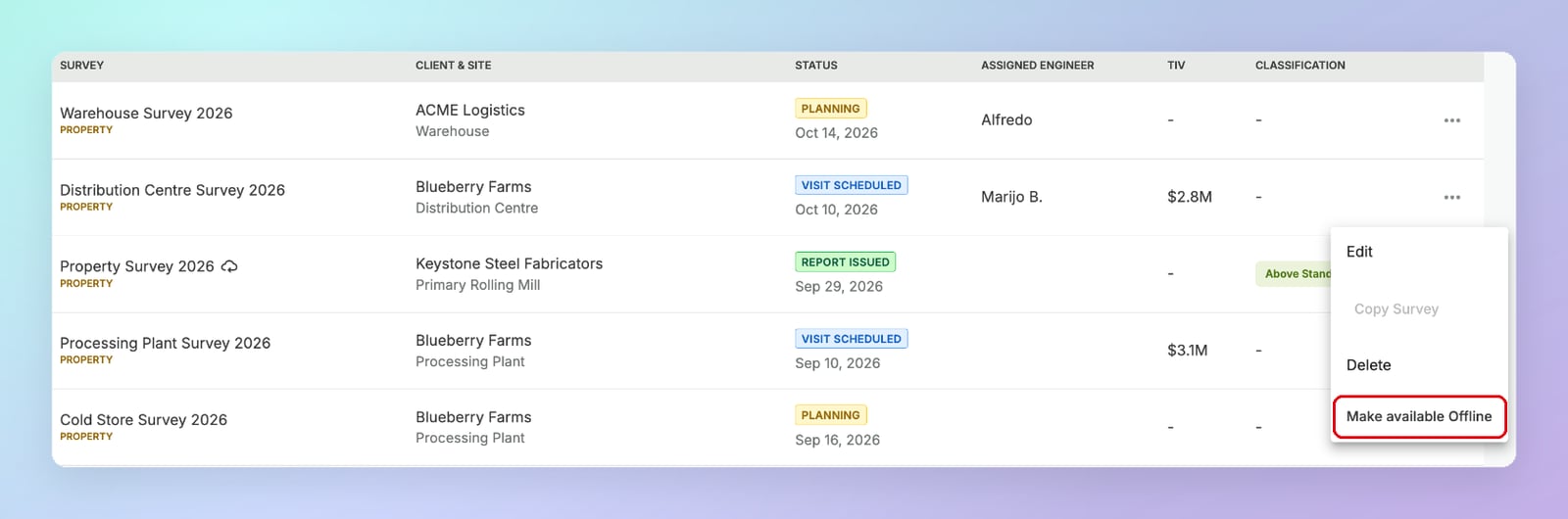
You can make a survey available offline from either of two places:- The Surveys list — click the
···menu at the end of the survey’s row and select Make available Offline. - The survey record — click the
···menu in the header (next to Edit Survey) and select Make available Offline.
Removing a survey from offline mode
Each offline survey takes up storage space on your device. It’s good practice to remove surveys you no longer need offline, for example:- To free up storage space. Your device has a limited amount of space available for offline surveys, and larger surveys with lots of content use more of it. The storage bar in the Offline Sync panel shows how much you’re using.
- When the site visit is over. Once you’re back online and your changes have synced, you don’t need an offline copy any more.
- To keep your offline list manageable. When you’re offline, the Surveys list shows only your offline surveys, so removing old ones makes it easier to find the ones you’re working on.
- On a shared device. If other people use the device, remove surveys you’ve finished with so client information isn’t left stored on it.
··· menu for the survey (from the Surveys list or the survey record header) and select Remove from offline mode.
To remove every offline survey at once, use Remove all surveys in the Offline Sync panel.
Working offline
When TruRisk detects that you’ve lost your connection, a message appears: “You’re offline – reload the page to enter offline mode.” Click Reload to switch to offline mode. In offline mode:- A red dot appears on Surveys in the sidebar to show you’re offline.
- The Surveys list shows only the surveys you made available offline.
- You can open and edit those surveys as normal, and you can delete an offline survey from its
···menu.
- Searching and filtering the Surveys list
- Export and Edit Survey in the survey record header
- The Change Log tab
Pending changes
Every change you make offline is saved on your device and added to the sync queue. Until it syncs:- The edited section of the survey shows a Pending Sync badge.
- The Offline Sync icon in the top bar shows an amber badge with the number of pending changes.
Syncing your changes
You don’t need to do anything to sync. When your connection returns, TruRisk uploads your queued changes automatically. When the sync completes, a message confirms “Your offline changes have synced”, and the Pending Sync badges are cleared.The Offline Sync panel
The Offline Sync icon (a cloud) sits in the top bar, next to Search. A coloured dot on the icon shows the current sync status:
Click the icon to open the panel. It has two sections.
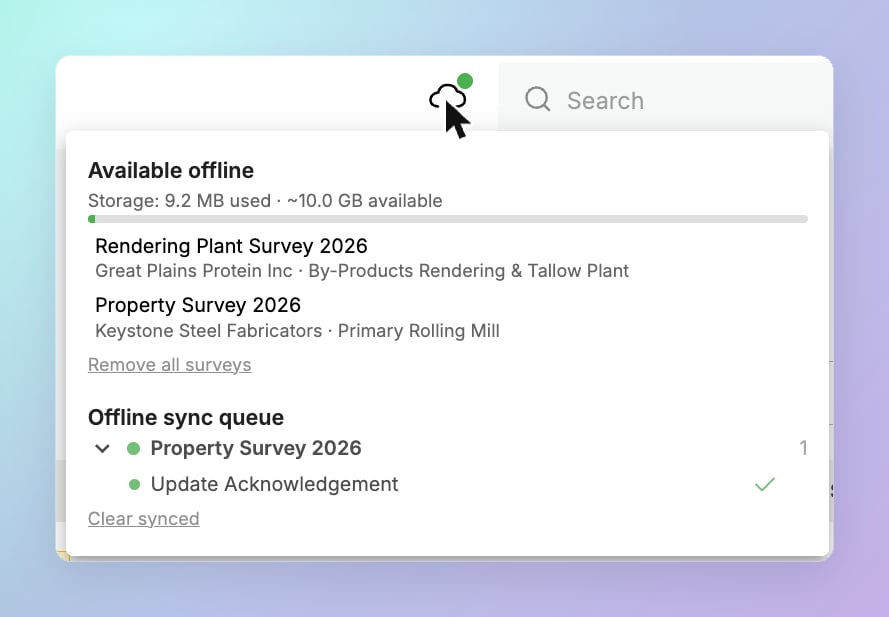
Available offline
- A storage bar showing how much space your offline surveys are using on your device, and how much is available.
- A list of the surveys available offline, with the client and site for each.
- Remove all surveys — removes every survey from offline mode on this device in one step.
Offline sync queue
The queue lists changes that haven’t synced yet, grouped by survey. Each survey shows how many changes are pending — expand it to see the individual changes (for example, Update Acknowledgement). Once a change has synced, it’s shown with a tick. Click Clear synced to remove synced changes from the list. Clear queue discards all of the changes waiting to sync.Fixing sync errors
If a change fails to sync, the dot on the Offline Sync icon turns red. Open the Offline Sync panel to see which changes failed. For each failed change, you have three options:Retry the sync
Retry the sync
Attempts to sync the change again. Try this first — many failures are caused by a temporary connection problem.
Edit directly
Edit directly
Opens the change in an edit window so you can make it again online. The content you entered offline is filled in automatically from your device, so you don’t need to retype it.
Copy as JSON
Copy as JSON
Copies the change as JSON. If a complex change won’t sync, email the JSON to the helpdesk so the team can apply it for you and none of your work is lost. See Contact us.